Research
How to make AI videos in 2026: free tools, steps and what gets views

13 ways to make AI video compared on what free really gets you and the lowest price, checked on 5 October 2026. One prompt run through four models, step-by-step workflows for TikTok and YouTube, the AI label rules, and which AI-style formats got views in our studies.

On this page
Here is how to make AI videos that people watch. Pick a tool for the job: a short clip, an AI avatar of you, or a finished video from a script. Write a prompt that names the subject, the action, the setting and the camera. Generate a few versions, then edit the best ones into a vertical video with the hook written on screen. Then turn on the AI label where the platform asks for one. Most tools have a free tier, but free usually means a watermark, a daily cap, a few seconds per clip, or a one-time pot of credits.
Making the clip is the easy half. Getting views is the hard half, and that is where our own data comes in. Postdom has studied 1,272 short videos from 160 accounts, 2,138 TikTok posts from 267 accounts and 559 top TikToks in an October scan. Faceless videos showed no clear difference, except for product brands. Green-screen explainers lagged, and walls of text leaned that way. Real places, voiceovers and hooks written on screen went with more views. The numbers are further down.
AI video tools compared: free tier, watermark, length and price
We read each vendor's own pricing or product page on 5 October 2026, from the US. Prices change often and several tools run first-month deals, so treat this as a snapshot and check the page before you pay. Where a page didn't say something, we wrote "not stated" rather than guess.
| Tool | What free gets you | Lowest paid price | Best for |
|---|---|---|---|
| Google Gemini | No video on the Free plan. From Google AI Plus you get 10-second clips with SynthID, an invisible watermark | Google AI Plus $4.99 | The cheapest way into high-end clips with sound |
| YouTube app | AI clips up to 10 seconds for Shorts, labeled as AI. Needs English as the device language, not in the EU. Avatar videos carry a visible watermark | No price listed | Quick Shorts clips and an AI version of yourself |
| Adobe Firefly | Free daily generations that reset every day, no plan needed. Watermark not stated | Firefly Standard US$9.99 (up to 20 five-second videos) | A free daily allowance for short clips |
| Kling | Free tier with a watermark, clips up to 15 seconds | $10 list price ($8.80 with the monthly discount shown) | Realistic motion and consistent characters |
| Runway | 125 one-time credits on a selection of models. Gen-4.5, at 12 credits a second, is listed from Standard | Standard $15, or $12 billed yearly, no watermark | Cinematic shots and multi-shot editing |
| Pika | A free account with 0 monthly credits (packs only). No watermark on any plan | Starter $10. Commercial license from Creator, $35 | Cheap experiments |
| OpenArt | Free credits at signup. Clips usually up to 15 seconds, 30 on Seedance 2.5 | Starter $14 ($13 with the discount shown), watermark-free | Trying many video models in one place |
| HeyGen | 3 videos a month up to 1 minute, 1 custom video avatar, with a watermark | Creator $29, videos up to 30 minutes | An AI avatar of you reading a script |
| Synthesia | Basic: 10 minutes of video and 500 credits a month, share by link only, with a watermark | Starter US$29, or US$18 billed yearly | Training and explainer videos with an avatar |
| Canva | None. AI video clips (8 seconds, 16:9) are for Pro, Business, Enterprise and Nonprofit | Pro US$144 a year | A short AI clip inside designs you already make |
| CapCut | Says its AI video maker exports HD video for free. Watermark and length not stated | Pricing page didn't load on 5 Oct | Making and editing a TikTok in one app |
| invideo AI | No free plan on its pricing page | Starter $20 | A full video with script, voiceover and subtitles from one prompt |
| Open-source (Wan 2.2 in ComfyUI) | Free and unwatermarked on your own computer. Apache 2.0 license allows commercial use. Needs a graphics card (the 5B model fits in 8 GB) | $0, on your own hardware | Unlimited free clips if you have the hardware and an afternoon |
Sources, all read 5 October 2026: Google AI plans and Gemini video generation, YouTube's help on AI clips for Shorts and avatars, Adobe Firefly plans and its video generator, Kling's video page and membership plans, Runway pricing, Pika pricing, OpenArt pricing and its video FAQ, HeyGen pricing, Synthesia pricing, Canva pricing and its AI video FAQ, CapCut's AI video generator, invideo AI pricing and ComfyUI's Wan 2.2 guide.
One tool is missing on purpose. OpenAI says the Sora web and app experiences were discontinued on April 26, 2026, and the Sora API on September 24, 2026. Plenty of guides still tell you to start there.
Two things the table doesn't show. First, "commercial use" rules differ: Pika lists a commercial license from its Creator plan, and OpenArt lists commercial use rights from its Plus plan. Read the terms before you use a free clip in an ad. Second, credits run out faster than the headline suggests, because longer, sharper clips and premium models cost more per second.
Same prompt, four models
To show the difference, we ran one prompt through four video models on 5 October 2026: Kling 3.0 Standard, Google Veo 3.1 Lite, Wan 2.2 A14B (the open-weights model you can also run free in ComfyUI) and MiniMax Hailuo 2.3 Standard. We used the fal API, not the vendors' own apps or free tiers, so watermarks and credit costs there may differ. Each clip is 5 to 6 seconds with no sound.
The prompt: "A barista pouring latte art into a white cup on a wooden cafe counter, close-up on the hands and cup, slow push-in, soft morning window light, steam rising, no text, no logos."
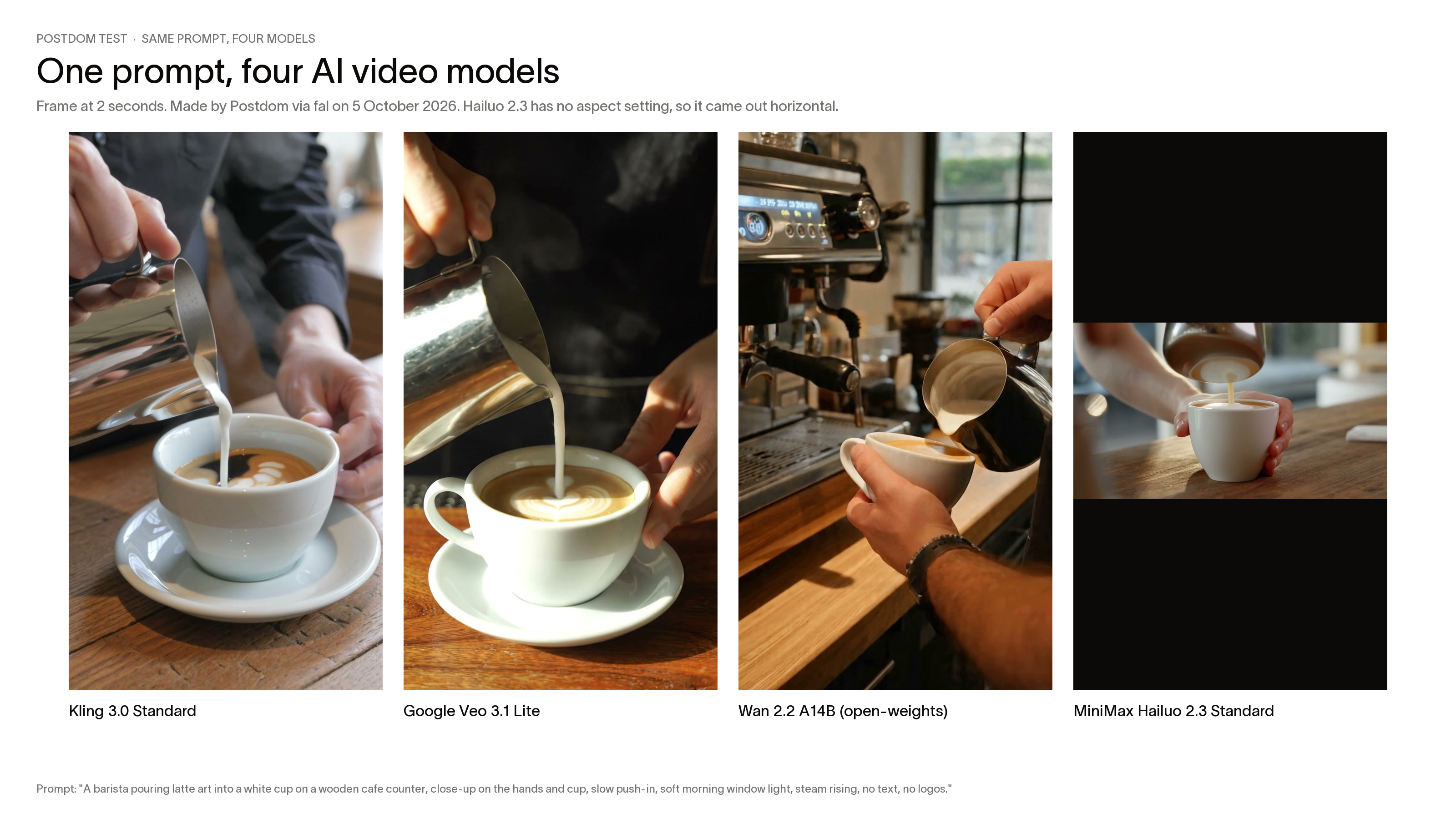
- Kling 3.0 Standard: the most convincing pour, with latte art forming in the cup. 5 seconds, vertical. fal lists it at $0.14 a second.
- Google Veo 3.1 Lite: a clean heart pattern and visible steam, close to Kling. 6 seconds, vertical, $0.05 a second on fal.
- Wan 2.2 A14B: a wider shot with the espresso machine in view. The machine's display shows made-up lettering, even though the prompt said no text. 5 seconds, vertical, $0.08 a second on fal.
- MiniMax Hailuo 2.3 Standard: a smooth pour, but no latte art pattern, and it came out horizontal because the model has no aspect setting. 6 seconds.
The lesson for your own videos: run the same prompt through two or three tools before you commit to one, and check every frame for stray lettering.
How to make AI videos in 7 steps
These steps work with any tool in the table. They are most of how to create AI videos that hold up once they are posted, not only ones that look good in the generator.
- Decide what the video is for before you pick a tool. A TikTok clip, a YouTube Short, an explainer with an avatar and an ad need different tools. Write down the one sentence you want the viewer to remember.
- Write a short script in beats. For a 15 to 30 second video, three to six beats is plenty: a hook, your points, a quick recap. In our study, list videos drew 2.12 times the views of the same account's other videos, and a recap at the end drew 1.52 times.
- Pick the tool by the job. For single shots, use a clip generator such as Kling, Runway, Firefly or Gemini. For an AI version of yourself reading a script, use HeyGen, Synthesia or YouTube's avatar. For a whole video from one prompt, use invideo AI.
- Prompt each shot on its own. Name the subject, the action, the setting, the camera and the light, and ask for vertical 9:16 if it is going to TikTok, Reels or Shorts. Generate two to four versions of each.
- Watch every clip to the end before you pick. Check hands, faces, any lettering and anything that looks like a real brand or person. Regenerate by changing one thing at a time.
- Edit the clips together. Put the hook on screen in the first second, cut every 2.5 to 6 seconds, and add a voiceover or music plus captions. Hooks written on screen drew 1.79 times the views in our data, and that cutting pace 1.53 times.
- Label it and post. Turn on the platform's AI label if the video looks real (the rules are below), and say your topic in the caption.
If you only need to know how to make an AI video for one post, steps 3 to 5 are the whole job. The other steps are what make the second, tenth and fiftieth video worth watching. Before you upload, run your file through our free video spec checker to catch the wrong size or length.
How to make AI videos for TikTok
TikTok says what people watch, skip, like and share shapes what it recommends, so the AI part matters less than the first second. In our study, videos that opened on a real place drew 2.28 times the views of the same account's other videos, while ones that opened on a product close-up drew 0.56 times. Our guide to getting more views on TikTok goes deeper.
- Pick one idea and write the hook as on-screen text. Say who it is for or what they will learn. In our data the wording mattered and the length didn't.
- Generate three to five vertical clips, 5 to 10 seconds each. Ask for real-looking places such as a street, a shop floor or a kitchen, not abstract swirls.
- Edit in TikTok's own editor or a free editor such as CapCut, which says its AI video maker exports in HD for free. Add the hook text, a sound and captions.
- Keep the story in the caption if the video is one clip. In our data, a single clip with the hook on screen and the story in a long caption drew 1.67 times the account's usual views. That came from only 21 videos with a very wide range, so test it rather than bank on it.
- Turn on the label. When you post a video, tap Next, then More options, then switch on the AI-generated content setting. TikTok says this won't affect your video's distribution.
- Schedule it rather than posting at random. Our TikTok scheduling guide shows how.
AI slideshows are the other TikTok format worth trying. In our study of 2,138 TikTok posts, 52% of local service businesses' best slideshows were lists or step-by-steps, against 13% of their worst. Our TikTok slideshow guide has the steps, and if the goal is income, see how to make money on TikTok.
How to make AI videos for YouTube
YouTube now builds AI video into its own app. Its help center says you can create standalone clips up to 10 seconds long for Shorts from a text prompt and up to 3 reference photos, and that those clips are labeled as AI for you. You need your device language set to English, and it isn't available in the EU. Shorts themselves can be up to 3 minutes long.
- Choose Short or long video. A Short is vertical and up to 3 minutes. A long video needs a script, voiceover and many more shots.
- For a Short, open the YouTube app, tap Create, tap Add, choose Create video at the top, and type a prompt. Or generate clips in another tool and upload them.
- For a long video, write the script first, record or generate a voiceover, then generate b-roll shots for each section. Real footage of you or your work helps hold attention between AI shots.
- Upload through YouTube Studio. Under Attributes, answer the "AI use" question with Yes if the video looks real and was made or meaningfully changed with AI.
- Make each video worth watching on its own. YouTube's monetization policies say content must not be "mass-produced, generic, repetitive, or manipulative".
That last point matters if you want to earn. On 15 July 2025 YouTube renamed its "repetitious content" policy to "inauthentic content" and said it covers repetitive or mass-produced videos, which can't earn ad money. Read the policy, and our guide on how to make money with AI before you plan a faceless channel.
How to make AI videos for free
You can make AI videos for free, but every hosted free option has a catch. Here is what is actually free today, from the vendors' own pages on 5 October 2026:
- YouTube app: AI clips up to 10 seconds for Shorts, with no price listed. They are labeled as AI automatically. You need your device language set to English, and it isn't available in the EU.
- Adobe Firefly: free daily generations of short clips, reset every day, no plan needed.
- HeyGen Free: 3 videos a month, up to 1 minute each, with a watermark.
- Kling: a free tier with a watermark. Paid memberships remove it.
- Runway Free: 125 credits once, on a selection of models. They don't expire, but they don't top up either. At 12 credits a second for its top model, that is only a few seconds of video.
- Synthesia Basic: 10 minutes of video and 500 credits a month, with a watermark. You can share videos by link, but downloads start on the paid Starter plan.
- OpenArt: free credits when you sign up.
- CapCut: says its AI video maker is free with HD export.
- Open-source models: run a model such as Wan or LTX in ComfyUI on your own computer. It is free with no watermark, but you need a strong graphics card and an afternoon to set it up.
- Not really free: Pika's free account has 0 monthly credits, Canva's AI video clips need Pro, invideo AI shows no free plan, and video generation in Gemini is listed from the $4.99 Google AI Plus plan.
A free workflow that works:
- Write the hook and three to five beats in a notes app.
- Generate one clip per beat with free credits, spread across two or three tools if one runs out.
- Edit in TikTok's editor, the YouTube app or CapCut, and add your own voice. A voiceover went with 1.95 times the views in our study, and recording it yourself costs nothing.
- Crop or cover watermarks only where the tool's terms allow it. If they don't, live with the watermark or pay for the month you need.
If you post for a business, Postdom's Free plan is $0 for 5 posts a month on 1 connected account. Its videos carry a Postdom watermark, which paid plans can turn off.
How to make an AI video of yourself
An AI video of yourself means a digital copy of your face and voice that can say a script you never filmed. Three ways to make one:
- YouTube: in the YouTube app, tap Create, open the AI playground, tap Create video, then Make a video with my avatar. YouTube says you need to be 18 or older and own a channel, it is available in the US, Canada, Australia and New Zealand, and the videos carry a visible watermark plus SynthID and C2PA labels.
- HeyGen: the Free plan includes 1 custom video avatar and 3 videos a month up to 1 minute, with a watermark.
- Gemini or Synthesia: Gemini offers an AI avatar with a Google AI subscription, and Synthesia includes 3 personal avatars from its Starter plan (US$29 a month, or US$18 billed yearly).
To get a good result, film the source clip at eye level in even light, look at the lens, and speak at your normal pace. Then write short sentences, because avatars handle simple lines better than long ones.
Two rules to keep. Only make an avatar of yourself, or of someone who has said yes in writing. TikTok's AI content rules ban AI content that uses the likeness of adult private figures without their permission. And label it, because a realistic video of a person saying something they didn't say is exactly what all three platforms ask you to disclose.
One finding from our study to weigh up. Videos with the account's usual face drew 1.40 times the views of the same account's other videos, and a different person drew 0.69 times. We didn't test AI avatars, so we don't know yet whether viewers treat an avatar of you as you.
Prompting tips for AI video
A prompt that works names five things in one or two sentences. Copy this template and fill it in:
Template: [subject] [doing one action] in [setting], [shot type and camera movement], [light], vertical 9:16, no text.
| Weak prompt | Strong prompt |
|---|---|
| A nice coffee video | A barista pouring latte art into a white cup on a wooden counter, close-up, slow push-in, soft morning window light, vertical 9:16, no text |
| My bakery | Hands dusting flour over a loaf on a steel bench in a small bakery, overhead shot, static camera, warm early light, vertical 9:16, no text |
| A city at night | A wet city street at night with shop lights reflecting on the pavement, low tracking shot moving forward, neon and streetlight, vertical 9:16, no text |
- Give each clip one action. Long chains of events fall apart in a 5 to 10 second clip.
- Ask for the right shape. Say 9:16 vertical for TikTok, Reels and Shorts. Canva's clips are 16:9 only, and Hailuo 2.3 gave us a horizontal clip in our test, so you would crop them.
- Start from an image when you need consistency. Runway's beginner guide says a reference image gives more predictable results than describing a scene from nothing.
- Change one thing at a time when you regenerate, so you learn what the model responds to.
- Keep words out of the generated shot. Add text in your editor, where you can check the spelling. Even with "no text" in the prompt, one of our four test clips invented lettering.
- Ask for real places and real-looking light. Openings on a real place drew 2.28 times the views in our data.
- Avoid named people, brands and logos. They can break platform rules and someone else's rights.
AI labels on TikTok, Instagram and YouTube
All three platforms ask you to label realistic AI video, and all three can add a label for you if they detect it. We read each official help page on 5 October 2026.
- TikTok. When: AI content that shows realistic images, audio or video, and TikTok encourages labels on anything fully made or significantly edited by AI. Where: post a video, tap Next, tap More options, turn on AI-generated content. Reach: TikTok says the setting won't affect distribution if the video follows its guidelines.
- Instagram. When: photorealistic video or realistic-sounding audio made or changed with AI, including a reel narrated with a realistic AI voiceover, but not images or cartoon-style video. Where: create a reel, then the Add AI label toggle. Reach: not stated, but Meta says there may be penalties if you don't label when required.
- YouTube. When: realistic content that makes a real person seem to say or do something, alters a real event or place, or shows a realistic scene that didn't happen, plus AI music that is the focus. Where: YouTube Studio, Attributes, "AI use": Yes. Reach: YouTube says disclosure won't limit a video's audience or its eligibility to earn money.
Sources: TikTok on AI-generated content and its integrity and authenticity guidelines, Instagram on labeling AI content, and YouTube on disclosing AI content.
The details that catch people out:
- TikTok may label your video automatically if it was made with TikTok's AI effects or carries C2PA Content Credentials, and once that auto label is on you can't remove it.
- On Instagram, a realistic AI voiceover alone is enough to need a label, even over real footage.
- YouTube doesn't need a label for scripts, captions, thumbnails, idea generation, beauty filters, or cloning your own voice for a voiceover.
- Clips made with YouTube's own AI tools, and anything carrying C2PA metadata, get a label you can't switch off.
- Non-realistic styles, such as cartoons or someone riding a unicorn, don't need a label on YouTube or Instagram.
What our data says about AI-style videos
We haven't studied AI-generated videos as a separate group yet. But most AI videos fall into formats we have measured: faceless clips, voiceovers over b-roll, walls of text, memes and green-screen explainers. Each number below compares a video with the same account's other videos, so a small bakery is measured against itself, not against a celebrity.
Green screens lag. Walls of text are a maybe
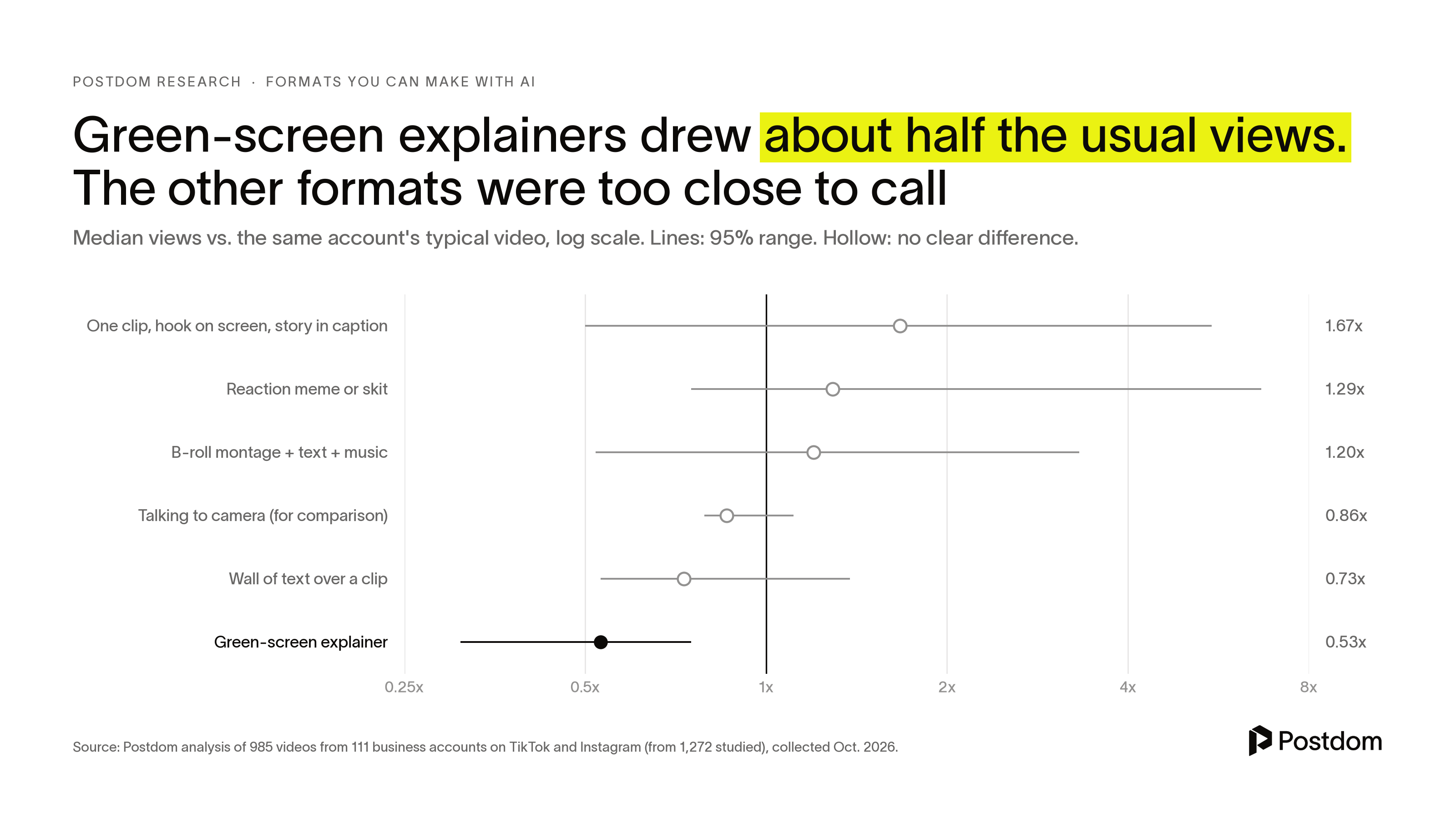
Green-screen explainers drew a median 0.53 times the account's usual views, from a small group of 14, and only 1 in 7 beat the account's median. A block of text over a stock clip drew 0.73 times across 60 videos from 32 accounts, and only 4 in 10 beat the account's median. The range was wide, though, so treat that as a lean, not a rule. B-roll montages with text and music came out about the same as usual. The full study is our wall-of-text analysis.
Faceless is fine. Textless is not
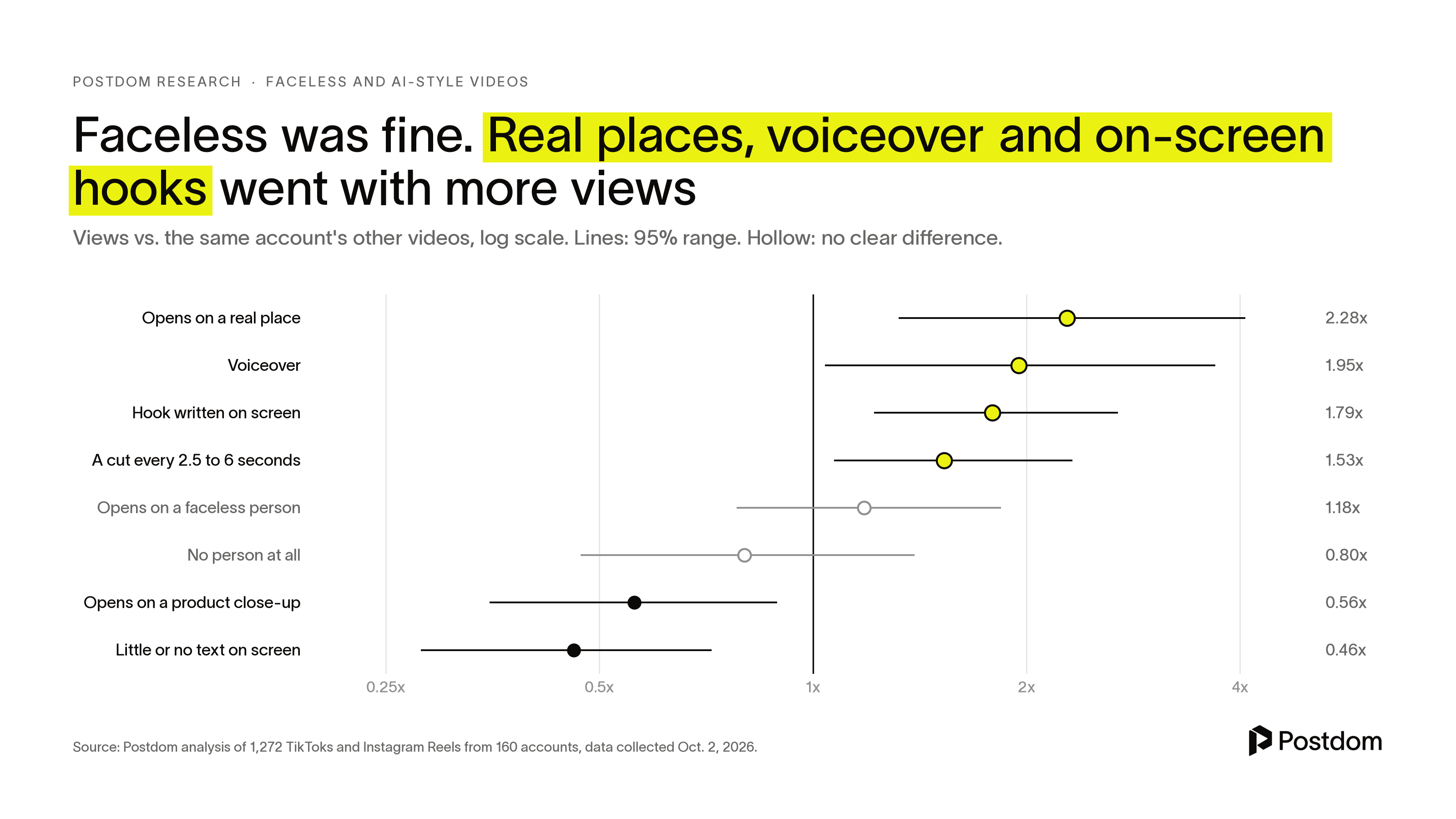
Across all 1,272 videos, opening on a faceless person (hands, or someone turned away) drew 1.18 times the views, and videos with no person at all 0.80 times. Neither was a clear difference either way. What did go with more views: a voiceover (1.95 times, from 60 videos), a hook written on screen (1.79 times) and a real place in the first frame (2.28 times). Videos with little or no text on screen drew 0.46 times. Read the full study.
Product brands are the exception
In our study of 2,138 TikTok posts by industry, small product brands (candles, clothing, bakeries, coffee) were different. Their videos with nobody on screen drew 0.42 times the views of the same brands' other videos, and videos with their usual face drew 2.51 times. If you sell a product, use AI for b-roll around a real person rather than instead of one.
Trends move fast
In our October scan of 559 top TikToks from September, posts under a week old already had a median 315,000 views, against 652,000 for month-old posts. Those are different posts, but it suggests hits pick up much of their reach in the first week. AI helps here because you can make a version of a trend the same day. Formats such as "Me when..." reached a median 62 times the poster's follower count. See the trends worth copying, and what makes people save a video.
A caveat on all of this: these are correlations, from samples that deliberately included each account's best and worst videos. That inflates the exact multiples, so trust the direction more than the size.
What to avoid when you make AI videos
- Green-screen explainers. They drew 0.53 times an account's usual views in our data. If you have a lot to say, put one line on screen and the rest in the caption.
- Clips with little or no text on screen. They drew 0.46 times usual views.
- Opening on a product close-up. It drew 0.56 times. Open on a place or a person instead.
- Ending with "let me know below". It drew 0.61 times. A quick recap drew 1.52 times.
- Skipping the AI label on realistic video. TikTok, Instagram and YouTube all require it, and Meta warns of penalties.
- Mass-producing near-identical videos. YouTube won't pay ad money on repetitive or mass-produced content.
- Other people's faces, voices, brands or characters without permission.
- Paying for a year before you have made ten videos. Use free tiers or one month first.
- Trusting old tool lists. Sora is gone and prices move monthly, so check the vendor's page on the day.
Where Postdom fits
If you post for a business, Postdom makes short-form videos from your website. It writes each one from what your site says, with the words in native text styles. Postdom builds it from checked stock clips and AI-made shots. If a clip is wrong, you can ask for a different one with Make changes (one credit) or reject the video. Every post waits for your approval by default, then goes to TikTok, Instagram, YouTube, Facebook and LinkedIn. Postdom turns on the AI label on TikTok, Instagram and YouTube for every video it posts there, so you never forget it. Facebook and LinkedIn have no AI label setting.
FAQ
Which AI makes videos for free?
Several do, with limits. Adobe Firefly gives free daily generations that reset each day. YouTube's app makes AI clips up to 10 seconds for Shorts with no price listed. HeyGen's Free plan gives 3 videos a month up to 1 minute, with a watermark. Kling has a free tier with a watermark, Runway gives 125 one-time credits, and OpenArt gives free credits when you sign up. We checked each on 5 October 2026.
Is there a 100% free AI video generator?
Only if you run it yourself. Open-source models in ComfyUI are free and unwatermarked, but need a strong graphics card. Every hosted option we checked had a catch: a daily cap (Adobe Firefly), a watermark (Kling, HeyGen, Synthesia), a one-time credit pot (Runway), clips of 10 seconds or less (YouTube's app), or no monthly credits at all (Pika's free account).
Is making AI videos hard?
Making a clip isn't. You type a prompt and wait a minute or two. The hard part is making a video people watch: a clear hook on screen, a few short beats, quick cuts and a recap. In our study, those choices went with more views. We haven't yet compared AI footage with real footage.
How can I create my own video?
Decide the one thing you want people to remember, write a hook and three to five short beats, then film them on your phone or generate one clip per beat with a free AI tool. Edit them together in TikTok's editor, the YouTube app or CapCut, put the hook on screen in the first second, and add captions.
How can I make an AI video of myself for free?
Use YouTube's avatar in the YouTube app if you are 18 or over, own a channel and live in the US, Canada, Australia or New Zealand. Its videos carry a visible watermark. HeyGen's Free plan also includes 1 custom video avatar and 3 videos a month up to 1 minute, with a watermark.
Is creating AI videos legal?
Generally yes, for your own ideas and likeness. The risks are using someone's face or voice without permission, copying brands or copyrighted characters, and skipping the AI label where a platform requires one. Check each tool's terms for commercial use, because some free plans don't include it. This isn't legal advice.
What's the best free AI video app?
It depends on the job. For quick Shorts clips, YouTube's own app. For a daily allowance of short clips, Adobe Firefly. For an avatar of you, HeyGen's Free plan. For realistic motion, Kling's free tier, if you can live with its watermark.
What AI app do TikTokers use?
There is no official count, and creators mix tools: clip generators such as Kling or Runway, avatar tools such as HeyGen, and editors such as CapCut. TikTok also has its own AI effects, and it labels videos made with them automatically.
Does TikTok allow AI-generated videos?
Yes. TikTok requires you to label AI content that shows realistic images, audio or video, and says turning on the label won't affect distribution. It bans AI content that fakes authoritative sources or crises, misleadingly shows public figures, or uses the likeness of under-18s or adult private figures without permission.
Can I make money making AI videos on TikTok?
Some people do, through brand deals, selling products or creator programs, but the videos have to follow each platform's rules. On YouTube, mass-produced or repetitive videos can't earn ad money. Our guides on making money on TikTok and making money with AI cover the options.
Can ChatGPT create videos for free?
OpenAI's video app, Sora, was discontinued on April 26, 2026, and its API on September 24, 2026, according to OpenAI's help center. For free AI clips today, try Adobe Firefly's daily generations, YouTube's app or Kling's free tier.
How are AI videos made?
A video model generates frames from a text prompt, a reference image or an existing video. Most tools make short clips of about 5 to 15 seconds, so longer videos are several clips edited together with text, voiceover and music.
How do I make AI videos look less fake?
Ask for real places and natural light, keep each clip to one action, avoid close-ups of hands and faces, and mix in some real footage. Put the words on screen in your editor rather than in the prompt.
Related
All posts