Your workflow
Free Social Media Content Calendar Template for Google Sheets and Excel
A free, no-signup social media content calendar template for Google Sheets and Excel that helps teams plan, review, track and improve social content before scheduling it.

On this page
Use this free social media content calendar template in Google Sheets or Excel to plan posts, owners, approvals, alt text, campaign links and results. Make a copy instantly—no email or Postdom account required. The spreadsheet plans the work; it does not publish posts.
| Template facts | Details |
|---|---|
| Format | Google Sheets; download as Microsoft Excel |
| Price | Free |
| Signup required | No |
| Includes | Seven tabs, a 30-day example, month view, approval tracking, accessibility fields, UTM builder and performance log |
| Verified | Native Google Sheets structure, dropdowns and formulas checked; XLSX formula scan passed |
| Updated | September 2026 · Version 1.0 |
If your calendar has become a tangle of half-written captions, missing links, and “is this approved?” messages, the problem usually is not a lack of ideas. It is that the planning system does not make the important details visible before a post is due.
This template is built for that handoff. Use the spreadsheet to decide what to say and get it ready. When you are ready to publish, start free with Postdom to move approved work into a scheduling workflow.
Postdom built the workbook around the fields that make a publishing handoff auditable. The 30-day plan is illustrative; it is not customer data, a performance case study or a claim about results.
Use the social media content calendar template in Google Sheets or Excel
Open the public Google Sheet to inspect every tab without signing in. To edit it, make a copy in Google Sheets. If your team uses Excel, choose File → Download → Microsoft Excel; the workbook keeps the same planning structure, dropdowns and calculated fields. You can also export an individual tab as CSV when a simple handoff needs flat rows instead of the full workbook.
What is included in this social media content calendar template?
The download has seven tabs. Each has a distinct job, so the workbook stays useful whether you plan a week at a time or run a fuller monthly process.
| Tab | What it is for |
|---|---|
| Start Here | A quick setup checklist and instructions for making a clean copy for each planning cycle. |
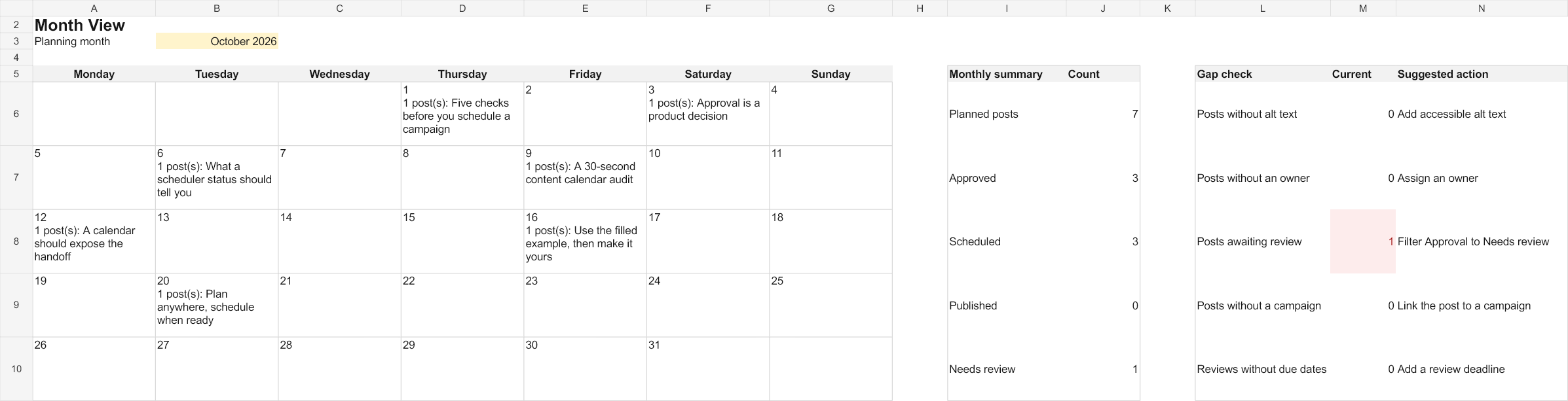
| Month View | A six-week calendar with platform, content-pillar and funnel-stage mix plus aggregate readiness gaps. |
| Content Calendar | The working table for each planned post: copy, channel, owner, approval status, links, and publishing details. |
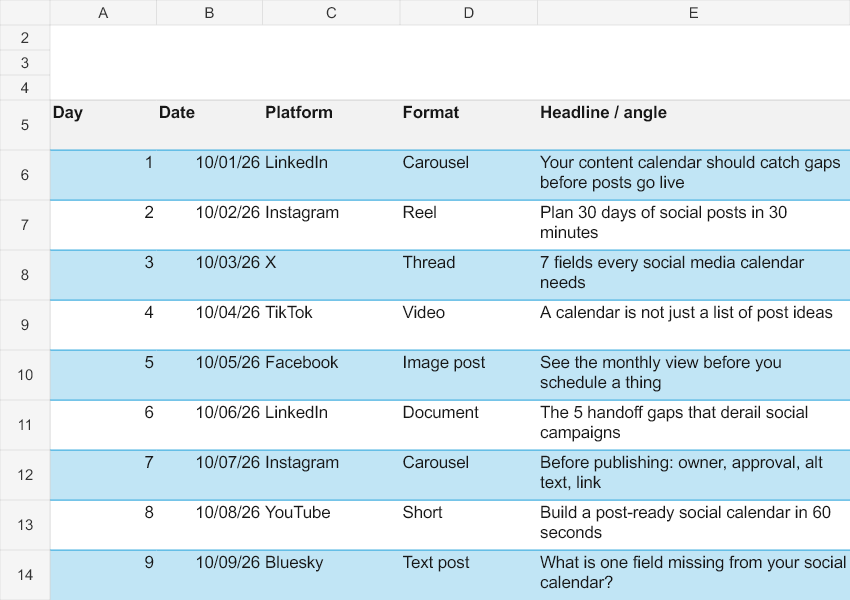
| 30-Day Example | An illustrative month that shows how a completed plan can look without pretending it is performance data. |
| Ideas Library | A place to capture hooks, angles, source material, and reusable concepts before they become posts. |
| Performance | A simple log for recording results after publishing and spotting ideas worth revisiting. |
| Settings | Lists for dropdowns and the planning month used by the rest of the workbook. |
The template is intentionally flexible. A solo creator can use a few columns; an agency or in-house team can use the approval, campaign, and reporting fields to reduce back-and-forth.
Who this free template is for
Use it if you need a practical planning layer before content is scheduled:
- Social media managers organizing a monthly content plan across several channels.
- Founders and small teams who need consistency without buying another planning tool.
- Agencies coordinating a client’s posts, owners, reviewers, and approval status.
- Content teams that need to preserve alt text, destination links, and campaign attribution before handoff.
- Anyone migrating from a blank spreadsheet or a calendar that only tracks dates.
It is not designed to replace a publishing platform. A spreadsheet can make the work ready; it cannot send the post on your behalf. That distinction is useful: plan in a format everyone can open, then schedule approved posts in Postdom when timing and delivery matter.
How to use the template in 10 minutes
- Open the public Google Sheet. Make a copy for your team, or use File → Download → Microsoft Excel if you prefer Excel.
- Go to Settings to choose the planning month, default time zone, platforms, formats, statuses, approval states, funnel stages and objectives. Enter owners, reviewers, campaigns and content pillars directly in Content Calendar.
- Read Start Here once, then duplicate the workbook or clear only the working rows for your next cycle.
- Add ideas to Ideas Library before they are urgent.
- Turn selected ideas into rows in Content Calendar. Assign a date, platform, objective, owner, and status first; write the final caption after the brief is clear.
- Use Month View to check cadence, platform mix, content-pillar mix, funnel-stage mix and aggregate gaps such as missing owners, campaigns, required alt text or review deadlines.
- Before handoff, complete the link, alt text, approval, review due date and UTM fields. The gap counts show the size of the problem; the row-level Readiness issue field identifies what each affected post still needs.
- After posts go live, add the published URL and observations to Performance. Keep the useful lessons, not just the numbers.
The workbook includes a 30-day example so you are never staring at an empty grid wondering how detailed a row should be.
The fields that keep a calendar usable
The calendar gives every planned post a row. You do not need every field for every post, but the fields below are the ones that prevent common publishing-day surprises.
Schedule, audience, and format
Start with the date, time, time zone, platform, and format. These details sound basic, but they answer the questions that otherwise appear in chat: which version is going where, when is it meant to be ready, and who needs to see it first?
The Month View turns those rows into a calendar so you can see spacing and campaign coverage. It is much easier to notice five posts on one day—or a silent stretch during a launch—when the plan is visual.
Campaign, pillar, objective, and funnel stage
Use the campaign field for a specific launch, offer, event, or recurring initiative. Use the content pillar for the broader theme that the post supports. The objective and funnel stage help distinguish awareness content from consideration, conversion, retention, or community work.
This is not busywork. It gives you a way to review the month as a portfolio instead of judging every post in isolation. If every row has the same goal, that is useful information before the content is scheduled.
Owner, reviewer, approval, and status
Assign an owner for the next action and a reviewer where approval is required. Keep approval separate from overall status: “draft” and “approved” are not interchangeable, and neither means the post has already gone live.
The template uses status, due dates, aggregate gap checks and a row-level readiness field to show work that still needs attention. Treat that as a pre-publish check, not a promise that a post is ready. The person responsible for publishing should still confirm the final copy, creative, links and platform requirements.
For teams that need a formal review loop, Postdom’s social media approval workflow is the natural next step after the calendar.
Asset link, alt text, and accessibility
Add the working creative or folder URL in Asset Link, then write meaningful alternative text in Alt Text when the post includes an image. Alt text should communicate the useful content of the image in context; it should not be a file name or a pile of keywords.
Putting alt text in the planning row makes it part of the creative brief rather than a detail someone tries to remember at the last minute. The same goes for captions, on-image text, and video accessibility requirements: note what needs to be checked before approval.
Destination link, UTM builder, and character count
The template lets you store a destination URL, campaign label, and a generated tagged URL. Use a consistent campaign naming convention so analytics stays interpretable later. The included UTM builder is for creating a planning-ready link; review the final URL before you publish it.
Character count is a useful prompt, not an automated compliance check. Platform rules, formatting, link handling, and account capabilities can change. Keep the final platform preview in your publishing workflow.
Repurposing and performance notes
Use Repurposed From to connect a post to the original asset, campaign, newsletter, video, or previous winner that inspired it. This helps teams reuse strong ideas intentionally instead of reinventing the month from scratch.
Once a post is live, add its post URL and record performance in the Performance tab. The sheet leaves results blank until you enter them; blank is not the same as zero. Add context such as “the hook led to strong discussion” or “the offer needed more explanation,” so your next plan is informed by more than a single metric.
Why this template includes accessibility, approval, and attribution fields
Most calendars stop at date, channel, and caption. That can be enough for a personal posting habit, but it is not enough for a team that needs reliable handoffs.
This template gives you room for three often-missed details:
- Accessibility: an explicit alt-text field keeps image descriptions in the workflow.
- Approval: owner, reviewer, approval, and status fields make responsibility visible.
- Attribution: destination URLs and UTM fields make it easier to connect social activity to the campaign that created it.
They are not decorative columns. They are the details that tend to be requested after copy is “finished.” Capturing them early means the publishing handoff is calmer and the record of what happened is more useful.
Spreadsheet vs. social media scheduler: where each fits
A content calendar and a scheduler solve different problems.
| Use a spreadsheet when you need to | Use a scheduler when you need to |
|---|---|
| Brainstorm, brief, and plan content with flexible fields | Schedule approved posts for a specific time |
| Collect feedback and prepare assets before publishing | Coordinate publishing in one workflow |
| Review a month’s campaign, channel, and ownership balance | Reduce manual publishing work after approval |
| Keep a portable planning record in Google Sheets or Excel | Track the operational state of scheduled content |
The strongest workflow uses both. Start with this free template to get the strategy, copy, creative, and approvals aligned. Then start free with Postdom when the work is ready to move from a row in a calendar to a scheduled post.
What the 30-day example is meant to teach
The 30-Day Example is illustrative, not a performance case study. It demonstrates a workable mix of recurring themes, formats, ownership, and review states over a month.
Use it to answer practical questions:
- How much detail should a row contain before it is assigned?
- How can one campaign appear across several formats without repeating the same post?
- Where should a reviewer, alt-text note, or destination URL sit?
- What does a calendar look like when it includes planning, review, and follow-up rather than only publish dates?
Copy the structure, not the exact themes. Your content pillars, posting frequency, and approval process should follow your audience, resources, and business goals.

Make the handoff from calendar to Postdom
When a row is approved, its practical next steps are simple:
- Confirm the final asset, caption, link, and accessibility details.
- Open Postdom and create the post for the relevant connected account.
- Paste the approved copy, add the final creative and URL, then set the intended publishing time.
- Use your team’s review process before scheduling.
- Add the resulting post URL back to the calendar after it is live, then log any useful outcome in the Performance tab.
That keeps the spreadsheet as the planning source of truth without asking it to do a scheduler’s job.
If you are building a workflow for several brands or clients, see Postdom for agencies. If your team is integrating a social workflow into another product, Postdom’s social media scheduling API may be a better fit.
Frequently asked questions
Is this social media content calendar template really free?
Yes. The template is intended to be downloaded and used without a signup gate. It is available in Google Sheets and Excel-friendly formats so you can start planning immediately.
Does the template publish posts to social media?
No. The workbook plans and records work; it does not publish posts. Use it to prepare the date, time, content, creative, approvals, links, and accessibility details. Use a scheduler such as Postdom when approved content is ready to be scheduled.
Can I use the social media content calendar template in Google Sheets?
Yes. The download includes a Google Sheets version. You can also use the Excel version if that is how your team works, and use CSV-friendly fields for a simple import or handoff process.
What should a social media content calendar include?
At minimum, include the planned date, platform, format, topic or caption, owner, and status. For a more reliable workflow, add campaign, objective, reviewer, approval state, asset link, alt text, destination URL, UTM information, and a place to record the final post URL and observations.
How far ahead should I plan social media content?
Start with one month. That is usually long enough to expose campaign and cadence gaps without locking the team into stale ideas. Keep timely posts flexible, review the calendar weekly, and use the Ideas Library for concepts that are not ready to schedule yet.
How do I keep a content calendar from becoming stale?
Give each active row an owner and a current status. Review the month view on a regular cadence, remove or reschedule work that no longer supports a goal, and record what you learned after publishing. The sheet should be a working plan, not an archive of old intentions.
What is the difference between a social media calendar and a social media scheduler?
A social media calendar helps you plan what will be published and why. A scheduler helps deliver approved posts at the chosen time. The calendar is the planning layer; the scheduler is the publishing layer.
Download the template and start planning
You do not need another login to get your next month organized.
When the plan is approved, start free with Postdom to turn your prepared content into a scheduling workflow.
Related
All posts