How to schedule YouTube Shorts for free on phone and desktop (and with Postdom)

On this page
Here's how to schedule YouTube Shorts: upload your finished video in YouTube Studio, choose Schedule, then set a date, time and time zone. Studio keeps it private until release. If you'd rather not make the Shorts yourself, Postdom turns your website into Shorts in your brand and schedules the ones you approve.
Three ways to schedule YouTube Shorts:
- Postdom: best when you want Shorts made for you from your website. You approve them and Postdom schedules them.
- YouTube Studio: best for one finished Short you want to release at a set time.
- An API or AI agent: best when your own agent prepares finished videos.
Can you schedule YouTube Shorts?
Yes. YouTube Studio schedules a Short for a future public release, for free, and keeps it private until then. You set the date, time and time zone in the Schedule card. Postdom can also make Shorts from your website and schedule the ones you approve.
How to schedule YouTube Shorts with Postdom
Postdom turns your website into ready-to-post videos, slideshows and single images in your brand. Videos publish to YouTube Shorts as well as TikTok, Instagram, Facebook and LinkedIn.
Paste your website
Type your website address. Postdom reads your brand from it: logo, colours, fonts, tone, what you do and who it's for.
Get ready-to-post content
Your For You feed fills with finished videos, slideshows and single images in your brand, using real clips and photos with native text boxes.
Approve, edit or skip
Nothing posts until you approve it. At your first approval, Postdom asks where it should post and you connect your account.
Postdom schedules what you approve
Approved posts are scheduled for you in your time zone, with quiet hours overnight. Every approve, edit and skip shapes the next posts.
Starter is $39 a month for 30 posts, with a 7-day free trial. See pricing and how scheduling works in Postdom.
How to schedule YouTube Shorts for free
YouTube Studio is the free route: scheduling a Short in it costs nothing, and the steps are below. If you want the Shorts made as well, connect YouTube in Postdom. Starter is $39 a month for 30 posts, and Starter, Growth and Scale start with a 7-day free trial, so you can schedule YouTube Shorts with Postdom free for 7 days.
How to schedule YouTube Shorts in YouTube Studio
For a public release on YouTube, start here. Have the finished video, title and description ready, and check that you are in the intended channel.
Select your finished video
Sign in to YouTube Studio. Choose Create, then Upload videos, then select the file.
Complete the video details
Add your title and description. Review the audience and altered-content questions truthfully, and complete the remaining upload checks.
Choose the release time
Open the Schedule card. Select the date, time and time zone you want, then choose Schedule.
Follow YouTube's scheduling instructions and Shorts upload guide. Check the Shorts requirements before choosing your time.
Will the upload count as a Short?
For standard YouTube channels, square or vertical videos uploaded on or after 2024-10-15 and up to 3 minutes long are classified as Shorts.
Standard-channel qualification checked 2026-08-29.
How to schedule YouTube Shorts on your phone
In the YouTube app, upload the Short, then on the details screen open Visibility and choose Schedule if your app shows it. Set the date and time, then upload. If the option isn't there, upload the Short as private and schedule it from YouTube Studio on a computer. Postdom works in your phone's browser too: approve a Short and it's scheduled, with no upload from your camera roll.
How to change a scheduled YouTube Short
In YouTube Studio, open Content, select the Short and edit Visibility. Change the Schedule time and save, or choose Public to release it now. In Postdom, open the post in Posts and pick a new time, take it off the schedule or post it now.
Is it good to schedule YouTube Shorts?
Yes, if it helps you post steadily. YouTube hasn't said that scheduled Shorts are treated differently from Shorts published straight away, so scheduling is a planning tool, not a ranking trick. It lets you release at the time your viewers are on YouTube while you're busy. To pick that time, see the best time to post YouTube Shorts.
Schedule through an API or AI agent
Through an API or agent, Postdom publishes finished videos you supply to TikTok, Instagram Reels, YouTube Shorts, LinkedIn, Facebook Reels, X, Snapchat Stories, Threads and Bluesky. The released MCP tool sets YouTube visibility: private, madeForKids: false and containsSyntheticMedia: true, with no overrides, so it is not a timed public YouTube release. For a public release, use Studio. Follow the MCP connection guide.
If the Short does not appear when expected
| What you see | What to do next |
|---|---|
| Studio: still private after the time | Check channel restrictions. YouTube says a Community Guidelines strike can prevent a scheduled release. |
| Postdom: missed its time | Pick a new time or post it now. Do not quietly backfill a missed slot. |
| Agent upload: published, but nobody can see it | The MCP tool uploads privately by design. Change visibility in YouTube Studio. |
| The displayed day differs | Compare the full timestamp and time zone. Daylight-saving offsets can change the day. |
How to schedule YouTube Shorts: questions
Can you schedule YouTube Shorts?
Yes. YouTube Studio supports scheduling a Short for a future public release. Postdom can also make Shorts from your website and schedule the ones you approve.
Can I change a scheduled Short's time?
In Studio, open Content, select the video and edit Visibility, then change the Schedule time and save. In Postdom, open the post in Posts and pick a new time.
Does Postdom post without my approval?
No. Nothing posts until you approve it. Postdom only offers to post a type without review after 9 of your last 10 posts of that type were approved without edits.
How far ahead can I schedule?
This guide doesn't state a universal maximum. Check the date picker for the method you use.
Can you schedule YouTube Shorts on your phone?
In the YouTube app, open Visibility on the details screen and choose Schedule if your app shows it. Otherwise upload the Short as private and schedule it in YouTube Studio on a computer.
Is it good to schedule YouTube Shorts?
Yes, if it helps you post steadily. YouTube hasn't said scheduled Shorts are treated differently from Shorts published straight away.
Is there a free way to schedule YouTube Shorts?
Yes. YouTube Studio is free. Postdom makes Shorts from your website and schedules them, and Starter, Growth and Scale start with a 7-day free trial.
Next step
Start with one free post. Approve it and it's scheduled.
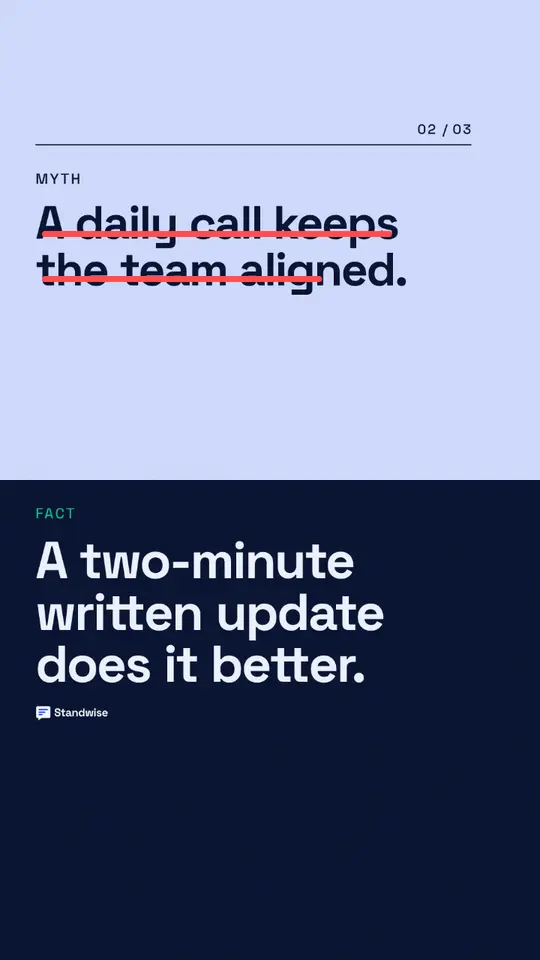
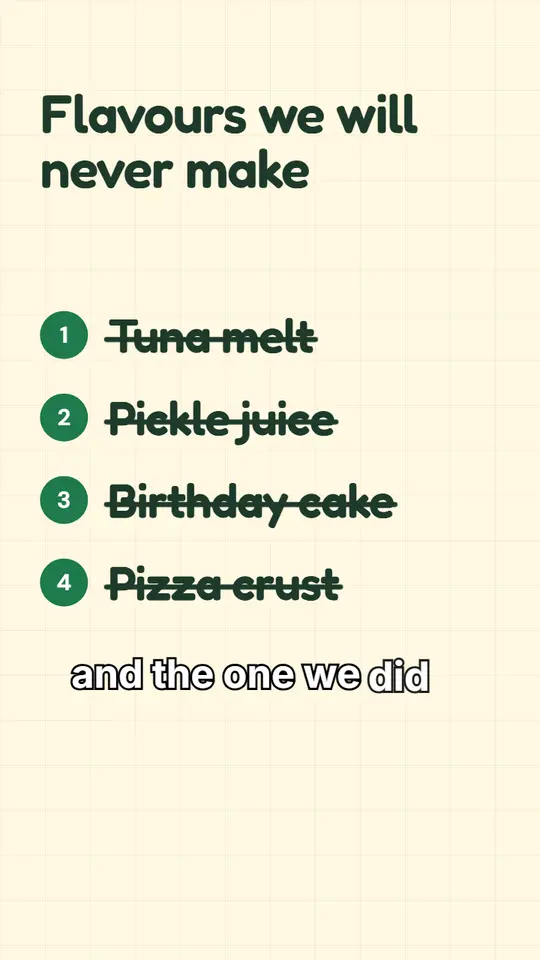
Made with Postdom for example brands.
Related
All posts